Write up an order. Get paid. Keep the books.
Bring the order sheets you keep in a spreadsheet into your workspace. Add the hardware and the services, and the subtotal, sales tax and card fee are worked out for you. Link it to a client, email them a clean branded order sheet, and watch the totals add up for accounting.
How it works
No new app, no per-order fees.
Add the lines
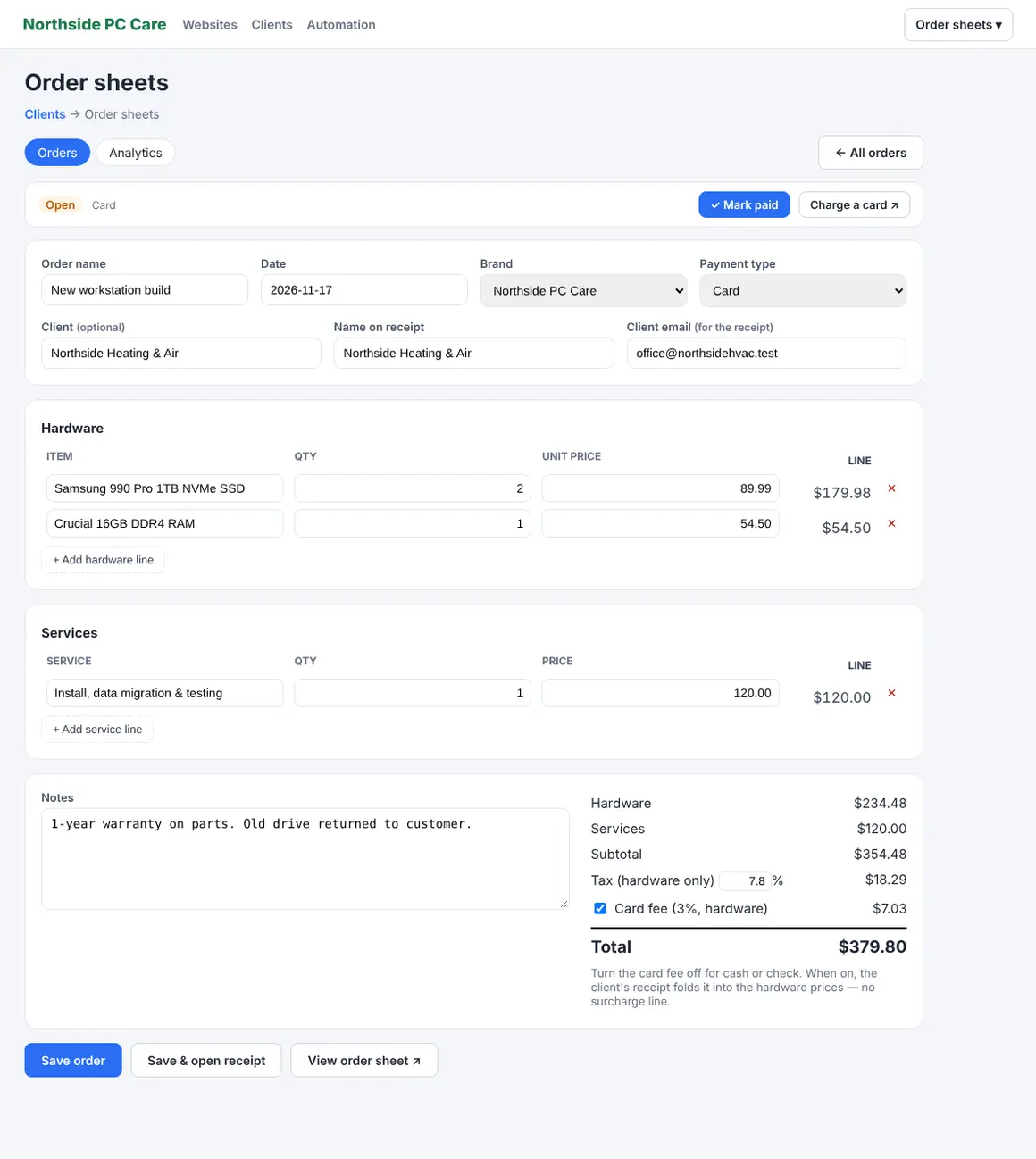
Type the hardware and the services, with a quantity and a price each. The line totals, subtotal, tax and card fee update as you go.
Name the client
Pick one of your clients so the details fill in, or just type a name for a walk-in. Add notes and a date, then save.
Send it over
Email the client their branded order sheet, or print it. Later, search and browse every order and see the totals for your books.
Hardware, services and totals that add themselves up.
Keep the parts and the labor as two separate lists, so you can see at a glance what came from products and what came from your time. The math is done for you, the moment you type it.
- Hardware and service line items, each with a quantity and price
- Type-ahead from your saved catalog — keep your common products and services with prices under Items, and a line fills its name and price as you type
- Sales tax on the hardware total only, at a rate you set per brand
- A 3% card fee on hardware, added automatically
- Subtotal, tax, fee and grand total, worked out on the server so they're always right
- Notes, a date, and an open or paid status on every order
Tied to the client — or not.
Search your client list to attach an order, and the name, email and brand fill in for you. No client record yet? Type a name and carry on; the link is optional.
- Search by name, company or email to attach a client
- Walk-ins need nothing more than a name
- Each order keeps its own copy of the client's name and email, so the order sheet stays correct even if the record changes later
- The right brand and tax rate come in with the client
An order sheet the customer is glad to get.
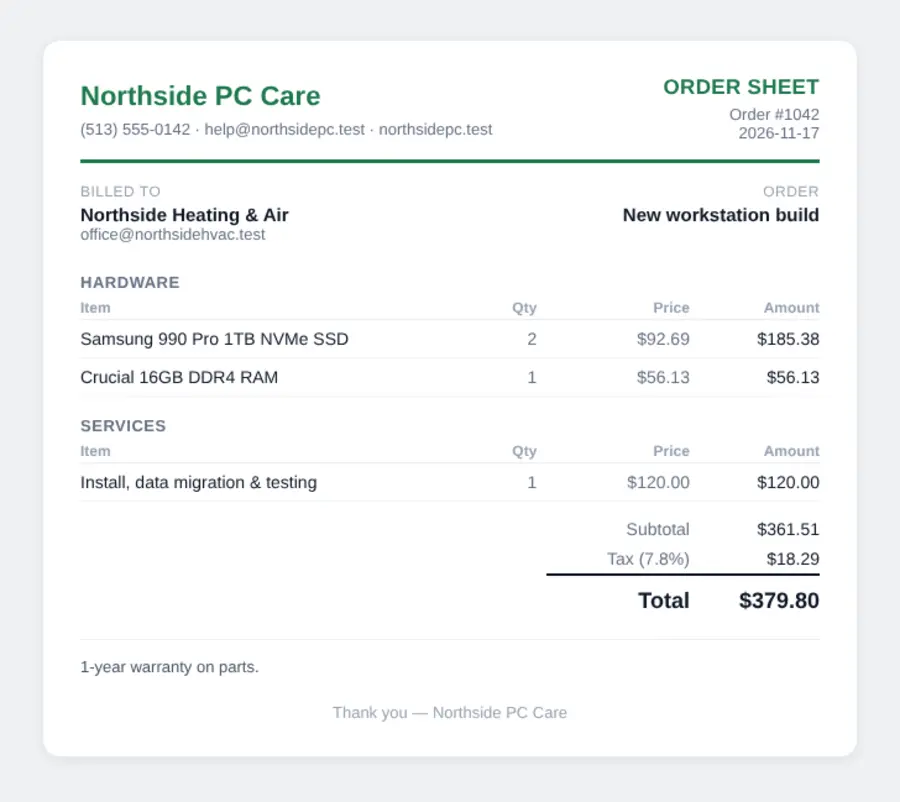
Every order has a clean order sheet in your brand — your logo, your colors, your phone and email. Open it, print it, save it as a PDF, or email it to the client in your brand's email with one click.
- Your logo, color and contact details at the top
- Hardware and services itemized, with the totals
- The 3% card fee folded into the hardware prices, so there's no surcharge line to explain
- A Pay now button when your Stripe account is connected — the client pays by card and the order marks itself paid
- Email it from the order, or share the print-ready link
Every order, searchable and by date.
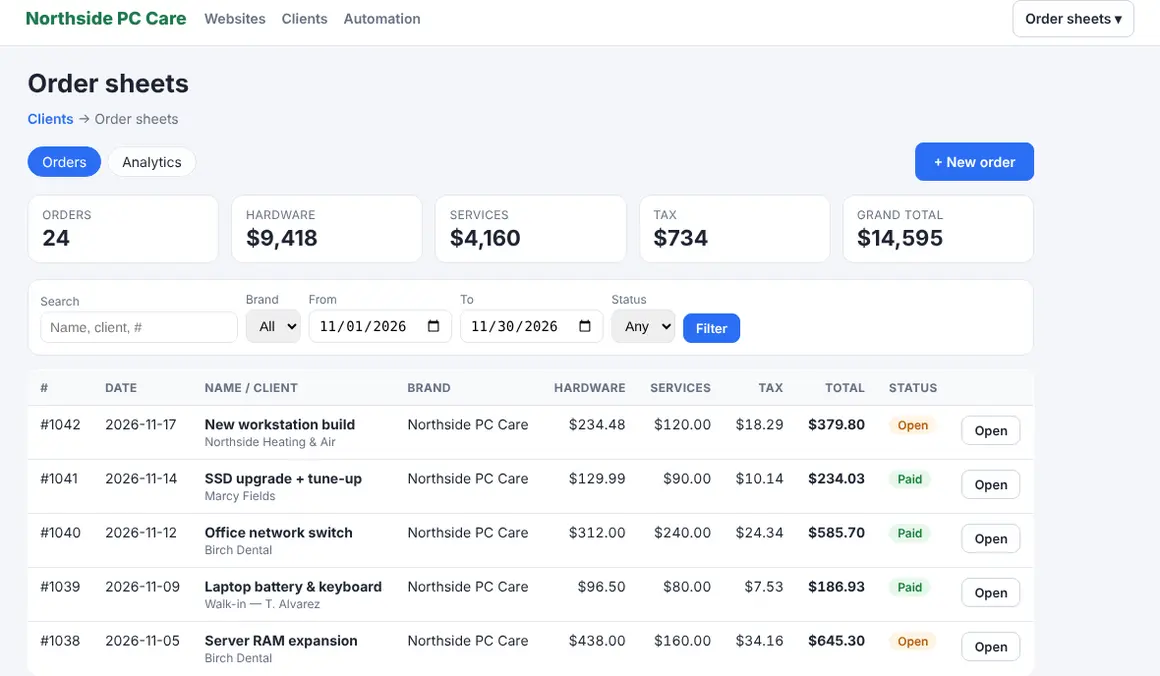
The whole history is one list: search by name, client or order number, filter by brand, date range or open-versus-paid, and the totals for whatever you're looking at sit right on top.
- Search across order names, clients and numbers
- Filter by brand, a date range, and open or paid
- Hardware, services, tax and total for the filtered set, at a glance
- Open any order to edit it or resend the order sheet
The numbers your bookkeeper asks for.
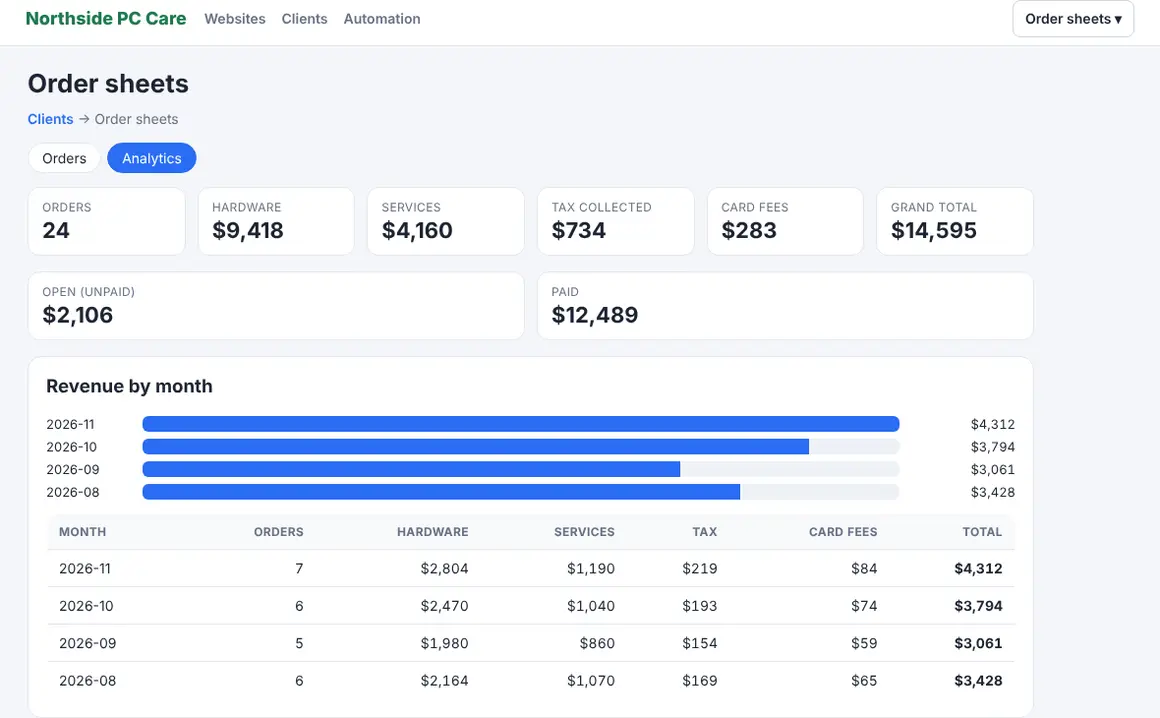
The Analytics area adds it all up: hardware, services, the tax you've collected, card fees and the grand total, for any date range or brand. See it by month and by brand, with open and paid kept apart.
- Hardware, services, tax collected, card fees and total
- Broken down by month and by brand
- Open (unpaid) versus paid, side by side
- Filter by brand and date range for a quarter or a year
Stop writing orders in a spreadsheet.
Free for 14 days. No credit card needed to start.
Included
Part of every workspace. No per-order or per-invoice fees, and no separate invoicing tool to buy.
Per-brand tax
Run more than one business name? Each brand has its own sales-tax rate and its own order-sheet branding.
Your data
Orders live in your own workspace database, never mixed with anyone else's, and the order sheet is yours to print or send.
Questions
What is an order sheet?
It's the write-up you already do for a job — the parts, the labor, the totals — kept in your workspace instead of a spreadsheet. Each order has a list of hardware and a list of services, notes, a date, and the client it's for. The totals, tax and card fee are worked out as you type, and you can email the client their order sheet when it's done.
How are tax and the card fee worked out?
Tax applies to the hardware total only, at a rate you set per brand (Settings → Brands), so a shop in one state and a brand in another each use the right rate. The card fee is 3% of the hardware total, added automatically. Services are never taxed or charged a fee. Every total is calculated on the server when you save, so the numbers are always right even if a browser preview lags.
Can I send the customer their order sheet?
Yes. Every order has a clean, branded order sheet — your logo, colors and contact details — that you can open, print, save as a PDF, or email to the client in your brand's email with one click. On the customer's copy the 3% card fee is folded into the hardware prices, so there's no surcharge line to explain; the grand total is exactly the same either way. If your workspace's Stripe account is connected, the order sheet also carries a Pay now button: the client pays by card and the order is marked paid for you.
Can they pay online?
If you've connected your own Stripe account (Settings → Payments — the same one the Subscriptions module uses), every unpaid order sheet shows a Pay now button for the exact total. The client pays by card through Stripe, the money lands in your account, and the order flips to paid automatically. No Stripe? It still prints and emails; you just mark it paid yourself, and you can set a payment type of cash, check or card for your records.
Does it link to my clients?
It can. Search your existing clients to attach one to an order, and the name, email and brand fill in for you. Or just type a name for a walk-in — the client link is optional. Either way the order is searchable by name, client or number and browsable by date, and a client's orders are easy to pull up later.
Can I use it for accounting and reporting?
The Analytics area totals your hardware, services, tax collected, card fees and grand total for any date range or brand, broken down by month and by brand, with open (unpaid) and paid shown separately. It's a running picture of what you've sold and the tax you've taken in — the numbers your bookkeeper asks for, without exporting a spreadsheet.
Do I have to retype prices every time?
No. Under the Items tab you keep a list of the products and services you sell, each with a price. When you write an order, start typing in a hardware or service line and pick from the list — the name and price fill in. Change a price under Items and it applies to new orders; orders you've already saved keep the price they were written at.
What does it cost?
It's included in every workspace. No per-order or per-invoice fees. Turn it on or off any time under Settings → Modules; saved orders are kept either way.
Turn your order sheets into payments and reports.
Start a free 14-day trial. No credit card needed to start.